

app.openworklabs.com/api/den is an internal same-origin desktop proxy used by OpenWork first-party flows. Do not paste it into external MCP clients.
Set up your client
Step-by-step guides for every client:OpenCode
Claude Code
Codex
Claude Desktop
ChatGPT
Cursor
VS Code
Windsurf
Zed
Gemini CLI
In the OpenWork desktop app
If you use the OpenWork desktop app, there is no MCP endpoint to configure. When you sign in, the app injects OpenWork Connect with access scoped to your active organization and refreshes that first-party access automatically. UseSettings > Connect to sign in to the services available to you.
Client support status
OpenCode setup
Add this MCP entry to your OpenCode config:Codex setup
Codex is setup-only for this PR until its native OAuth flow is rerun on this exact branch. Add OpenWork, then log in:Cursor setup-only guide
Paste the OpenWork Connect endpoint where Cursor asks for the remote MCP server URL, then start OAuth from Cursor’s connection prompt:cursor://anysphere.cursor-mcp/oauth/callback, which OpenWork accepts through an exact allowlist with PKCE S256 enforced, so intercepted authorization codes cannot be redeemed without the code verifier.
Full guide: OpenWork MCP for Cursor.
ChatGPT setup-only guide
Open ChatGPTSettings > MCP servers (open settings), paste the OpenWork Connect endpoint, and start OAuth from ChatGPT’s connection prompt:
Organization selection
The organization you choose in the browser is pinned into the token. Changing the active organization in OpenWork later does not change an external client’s existing token. Use the logout/auth or logout/login reconnect commands above when you need a different organization.What you can ask the agent
Once connected, your agent can use OpenWork capabilities from plain English in the composer. These flows are exercised end to end against a live OpenWork Cloud deployment:- Check your cloud identity — “Which OpenWork Cloud organization am I connected to?” The agent reports the organization, your account, and your role.
- Invite teammates — “Add omar@example.com to my organization.” The agent sends the invitation, updates the allowed email domains when needed, and surfaces seat-limit billing rules instead of failing silently.
- Manage teams — “Assign Priya to the Sales team.” Works for active members; the agent explains when someone still has a pending invitation.
- Share skills with your org — “Create a skill that writes weekly status
reports and share it with my whole organization.” The agent writes the
skill inside a plugin, adds the plugin to a Collection, and grants the
Collection org-wide — teammates find the assigned skill in
Settings > Library.
OAuth and protocol details
OpenWork Connect is a remote Streamable HTTP MCP server with OAuth:- The protected resource is exactly
https://api.openworklabs.com/mcp/agent. - Clients discover OAuth metadata with RFC9728 protected-resource discovery.
- The authorization server and browser sign-in origin is
https://app.openworklabs.com/api/auth. - OAuth authorize and token requests must include exactly one
resourcevalue:https://api.openworklabs.com/mcp/agent. - Clients that need registration use dynamic client registration as a fallback during discovery.
- PKCE is required for public/dynamic clients, and only the
S256code challenge method is supported. - Redirect URIs must be HTTPS callbacks or HTTP loopback callbacks such as
http://127.0.0.1:<port>/callback. Private-use callback schemes are not accepted for public OAuth clients, except exact allowlisted callbacks for known native clients — currently Cursor Desktop’scursor://anysphere.cursor-mcp/oauth/callback— with PKCE S256 enforced.
Token lifetime and refresh
Clients normally refresh automatically. The values matter when diagnosing reconnects:- Public OAuth access tokens are JWTs signed and validated with EdDSA. The issuer is exactly
https://app.openworklabs.com/api/auth, the audience is exactlyhttps://api.openworklabs.com/mcp/agent, and access tokens expire after 45 minutes. - Refresh tokens are opaque rotating grants with a 30-day inactivity window and a 30-second rotation overlap for near-simultaneous refreshes.
- Each refresh revokes the previous refresh grant; because OpenWork stores only token hashes, a replay during the overlap can issue another successor instead of returning prior plaintext.
- Successor grants remain normal rotating grants. If an old refresh grant is replayed after the overlap, expired, or revoked, the client may receive
invalid_grantand the client/user refresh-token family is revoked. Reconnect by logging out of the MCP entry and authenticating again. - Access is rechecked against the active OpenWork session and organization membership, so removing a member or revoking the session cuts off MCP access.
What the gateway exposes
Instead of flooding your client with hundreds of tool definitions, the gateway keeps the tool list small and constant./mcp/agent exposes two discovery tools:
search_capabilitiessearches the capabilities available to the signed-in member.execute_capabilityruns an exact capability name returned bysearch_capabilities.
MCP token scopes
mcp:read permits discovery, connection-status probes, and read-only native API
operations. Every external MCP provider tool invocation requires mcp:write,
including tools advertising readOnlyHint: true. The provider controls those
hints, and OpenWork has no trusted classification proving that a provider tool
cannot modify data through the connected credential. Hints describe a tool;
they do not grant execution authorization.
This requirement applies to generic execution, direct connections, compatibility
wrappers, Code Mode, and MCP App helper calls. The private mcp:app-host scope
selects the App audience; it does not replace mcp:write. Scripts that only
compute or call read-only native APIs do not require write scope.
The desktop app already requests both read and write scopes, and its separately
minted App-host token carries both. Existing read-only tokens are not upgraded:
to invoke an external provider tool, explicitly authorize the OpenWork client
for mcp:write. This is separate from reconnecting the provider account, and
does not bypass connection grants or organization tool policy.
MCP Apps
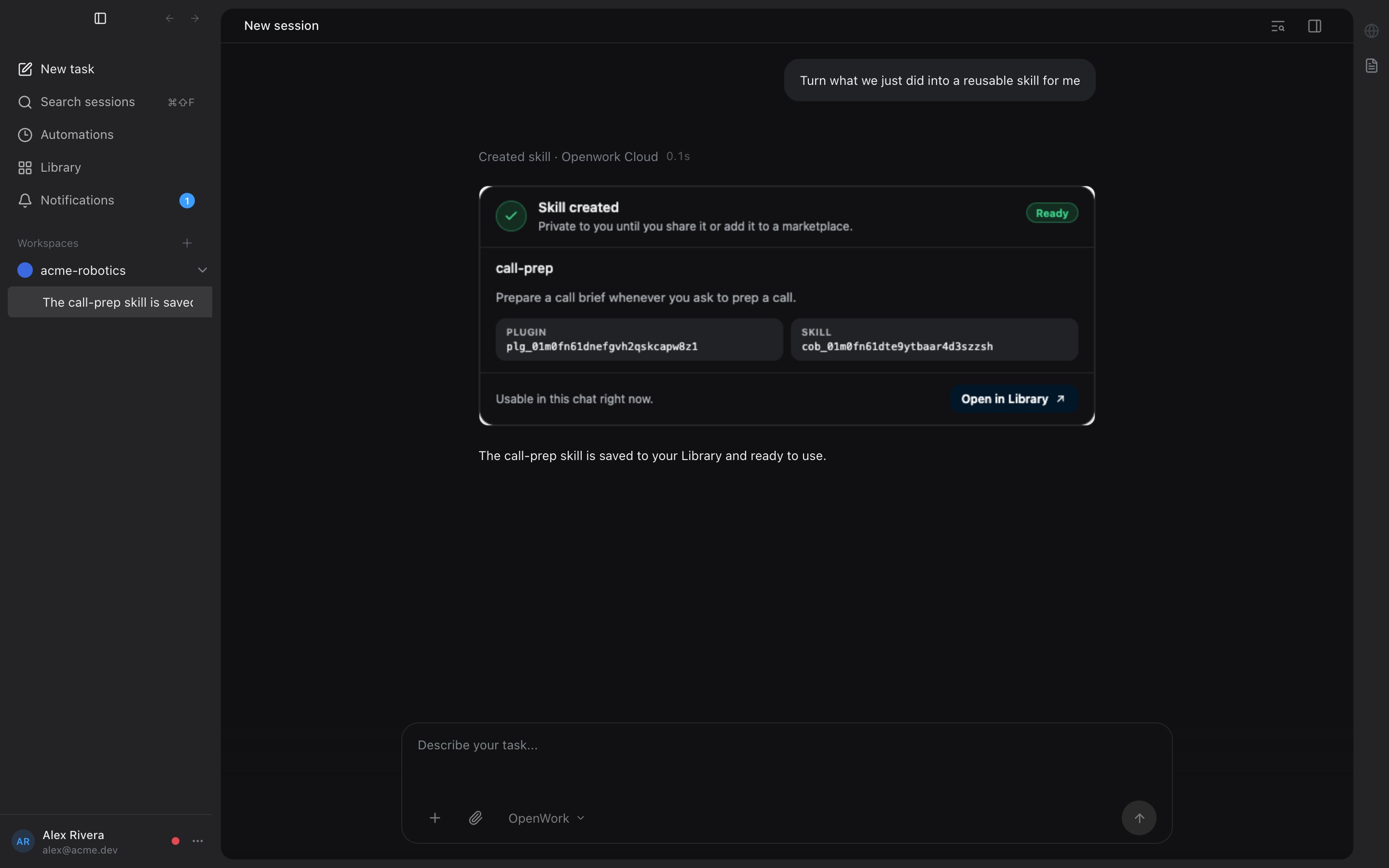
Some gateway results come back as MCP Apps: interactive UI rendered from a tool result instead of plain text, such as a created-skill confirmation card or a workflow result view. These use the standard MCP Apps extension (ui:// resources declared on tools). Rendering requires a compatible host and its advertised capabilities; clients without App support receive readable fallback content.
To put an MCP App on a team dashboard, see Dashboards.
OpenWork’s renderer supports a documented subset of the stable 2026-01-26 host protocol: complete launch input before result, inline display, bounded resizing and teardown, and server tools and links gated by the originating view. Conversation actions keep their original endpoint, workspace, session and live launch lease, including in split panes; dashboard actions keep their exact launching endpoint with no conversation session. Archived conversations, cached dashboard previews without a fresh launch, and generated read-only views cannot call tools or open links. Message/context writes, View tools, resource proxies, streaming input, and full progress/cancellation forwarding are not supported. This is not a claim that every App feature runs in OpenWork.
The gateway preserves provider structuredContent rather than adding fields to it. OpenWork launch and helper information lives in namespaced _meta keys (openwork/mcpApp, openwork/serverTools). Advisory schema warnings use openwork/schemaGuidance in _meta and a separate model-visible text block; private provider _meta is not copied into that text. See Provider data and gateway additions.
Troubleshooting
- 401 missing or invalid token: run the client’s auth/login command again. Confirm the client points to
https://api.openworklabs.com/mcp/agent. - 403 membership or scope error: confirm you selected the right organization and still have membership and required permissions there.
invalid_grant: the refresh grant was expired, revoked, or replayed after the 30-second rotation overlap. Run logout, then auth/login again.- 429 rate limit: wait for the response’s
Retry-Aftervalue before retrying. - Support requests: include the response
X-Request-Idheader plus any JSON body MCPreferenceIdor OAuthreference_idfield so OpenWork support can find the server-side trace.
Requirements
- An OpenWork Cloud account and organization.
- An MCP client that supports remote Streamable HTTP MCP servers.
- OAuth support in the MCP client, including browser-based authorization.