

Skill hubs are the team-wide way to distribute grouped skills in OpenWork Cloud. You create the skills and team assignments in the Cloud dashboard, then each desktop workspace can import the hub in one step. If you only need to publish a single skill, you can also save it directly from the desktop app without adding it to a hub. Those standalone org skills still appear inDocumentation Index
Fetch the complete documentation index at: https://openworklabs.com/docs/llms.txt
Use this file to discover all available pages before exploring further.
Skills -> Cloud and Settings -> Cloud -> Skills, but hubs are the better fit when you want one team-managed collection.
1. Create the organization
If you do not already have one, open app.openworklabs.com, clickCreate organization, enter the org name, and finish checkout if prompted.
2. Create the team
- Open
Members -> Teams. - Click
Create Team. - Enter
Team name. - Select the
Team membersthat should receive the hub. - Click
Create team.
Owner and Admin members can manage teams.
3. Create the skill or upload it from the desktop app
- Open
Skill Hubs -> All Skills. - Click
Add Skill. - Choose
Manual EntryorUpload SKILL.md. - Fill
Skill Name,Short Description, andDetailed Instructions (Markdown). - Choose the right
Visibility. - Click
Create Skill.
Workspace -> Skills, click Share skill, choose Team, and save it to your active organization before attaching it to a hub.
4. Create the hub and assign it to the team
- Open
Skill Hubs -> Hubs. - Click
Create Hub. - Set
Hub Nameand optionalDescription. - Under
Assigned Teams, select the teams that should access the hub. - Under
Hub Skills, select the skills to include. - Click
Create Hub.
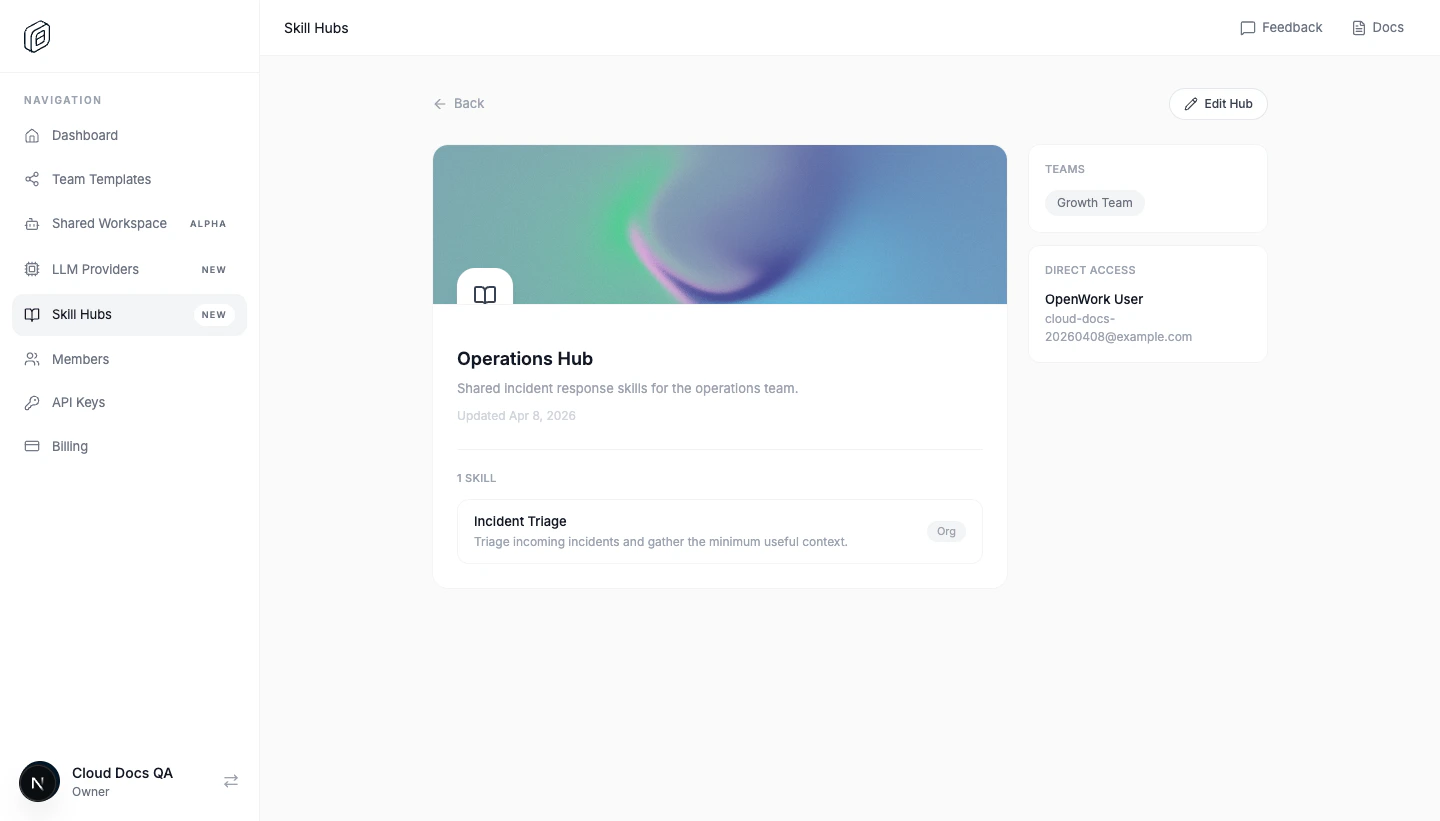
5. Import the hub into the desktop app
- Open the desktop app and go to
Settings -> Cloud. - Choose the same
Active org. - Under
Skill hubs, clickImport allon the hub. - Reload the workspace when OpenWork asks.
.opencode/skills for that workspace.
If you need just one shared skill instead of the entire hub, open Skills -> Cloud or Settings -> Cloud -> Skills and install it there.
Keeping it up to date
- Use
SyncinSettings -> Cloud -> Skill hubsafter the hub changes. - Use
Settings -> Cloud -> SkillsorSkills -> Cloudto sync, uninstall, or review individual skills that came from the org. - Use
Removeto stop managing the hub from this workspace.