

Local provider setup. The key you add here is for your desktop app. OpenWork remains free, and you do not need to sign in to OpenWork Cloud. To manage Anthropic access for a team, use a managed LLM provider.
Before you start
- You need an Anthropic account at platform.claude.com.
- Your Claude subscription and your Anthropic API billing are not always the same thing, so make sure API access is enabled on your Anthropic account.
- Treat the key like a password. Anthropic will only show the full value when you create it.
Models > Bring your Own Keys in OpenWork Cloud. Members receive it through Settings > Cloud Providers instead of pasting it into each workspace separately.
Create the key in Anthropic
- Sign in at platform.claude.com.
- Open the
API Keyspage.
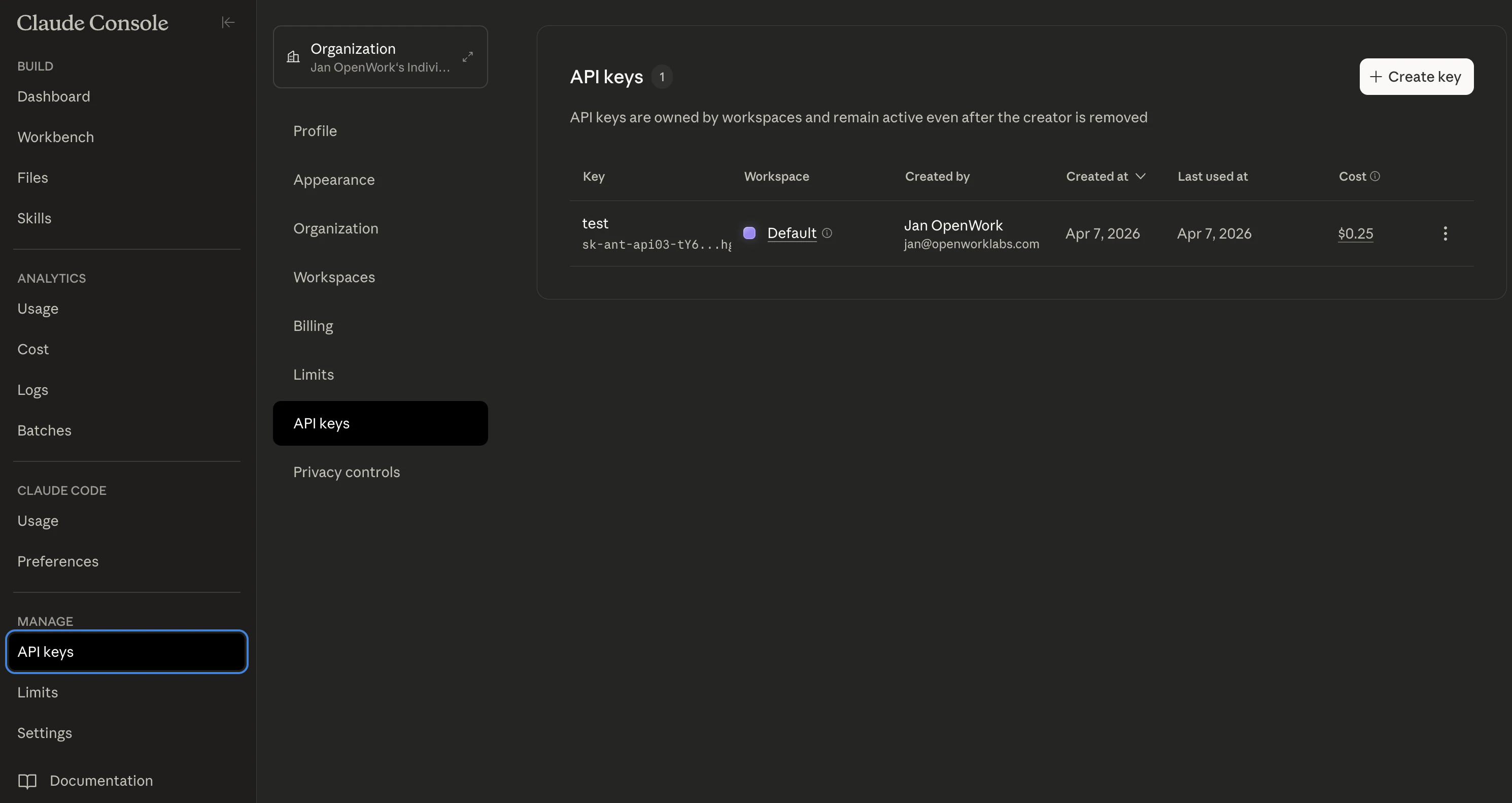
- Click
Create Key. - Give the key a recognizable name like
OpenWork.
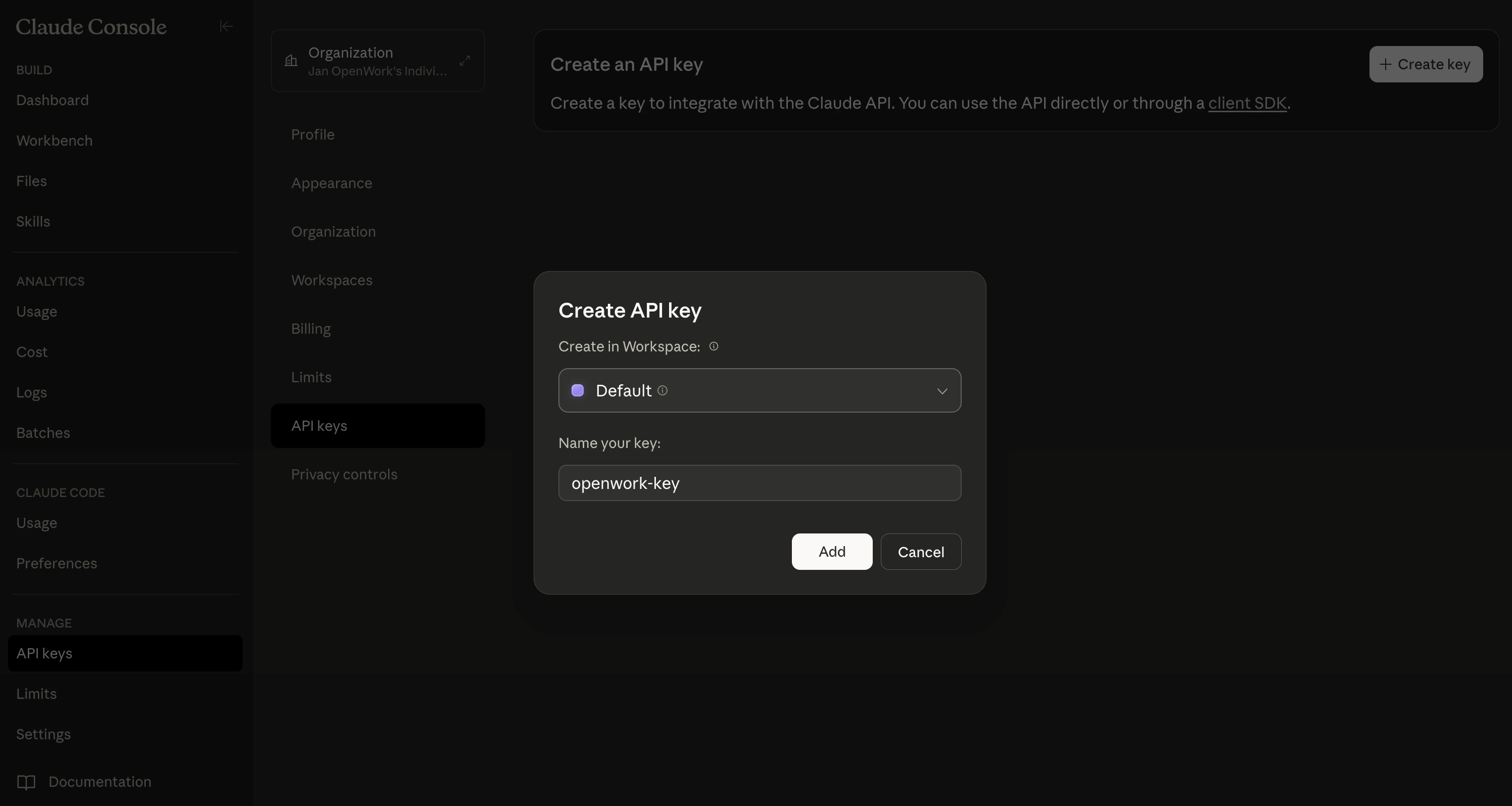
- Copy the new key right away. It should look like
sk-ant-....
Add the key to OpenWork
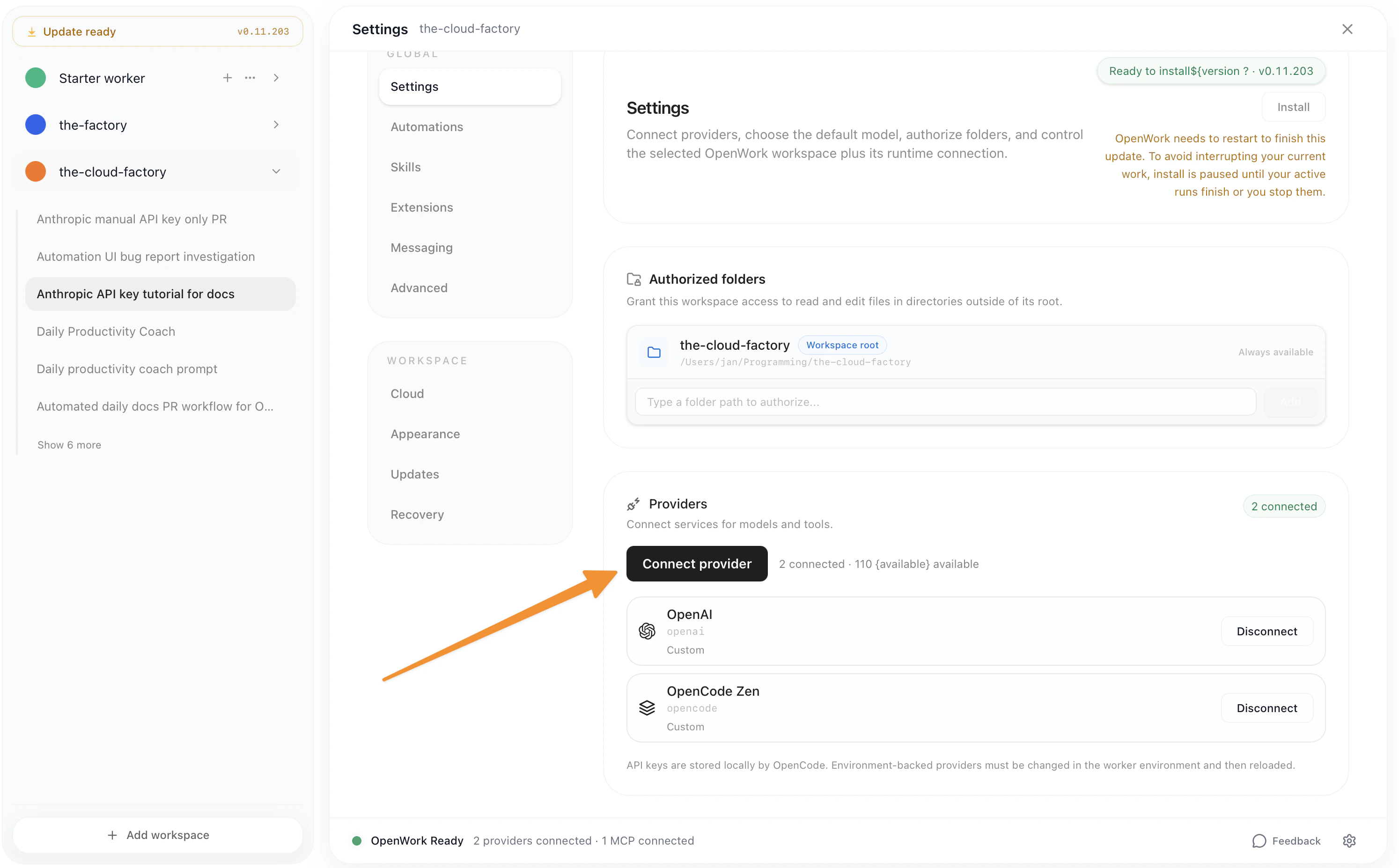
- Open
Settingsin OpenWork. - Go to
Connect Providerand chooseAnthropic. - Paste the API key into the manual key field.
- Save the provider, then choose an Anthropic model in chat.
Common issues
- If the key is rejected, make sure you copied the full value without extra spaces.
- If you cannot see
API Keys, check that your Anthropic account has API access and billing set up. - If you lose the key, create a new one in Anthropic and update OpenWork with the new value.